
The most striking and distinguishing feature of Raw 3D graphics found in PS1 games and the software rendering mode of the Quake engine is is the grainy pixelation of all textures, as they didn’t support texture filtering. Every guide on PS1 graphics in Blender always starts with reducing all textures to a very low resolution, converting them to indexed colors, and going into the Shading tab to switch texture filtering from Linear to Closest in the Image Texture node. This is correct and works, but it has some limitations.
Raw 3D textures are not simply pixelated, but usually also very noisy. No two pixels that sit next to each over have the exact shade of color, and every one is somewhat lighter or darker colored than the average. These imperfections avoid the issue of large surfaces in uniform colors looking too flat and boring. One way to get that visual noise on an image texture is to open the texture file in GIMP, use the HSV noise filter, save the file, and reload it in Blender. This is a relatively fast and easy process when you do it once, but I very much prefer to see how the texture will look with noise in real time, while I am texture painting on the model in Blender. Using the noise filter in GIMP is also a permanent change to the image file and reverting back to the pristine version of the image to continue making changes to the background just isn’t a practical work process.
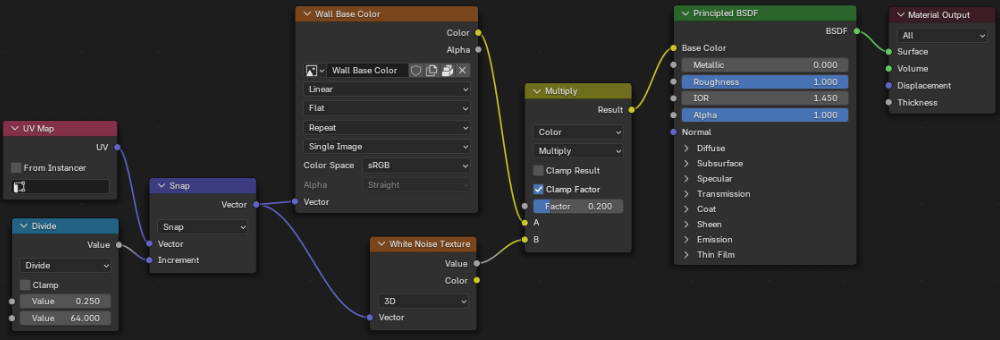
To solve these problems and be able to have the pixelated noise overlaid on the image texture as I am painting it, I am using this very simple shader that I made myself. Like a big boy game developer.
Click to embiggen.
After getting two suggestions for similar shaders from people who know much more about it than me. But this is a much more simplified version that uses different nodes from both examples. This is my custom interpretation for my own specific needs. That I made myself, and I understand how it works.
To start, I just select an object, go into Texture Paint mode, and create a new Base Color for the Texture Slot. Most guides on PS1 graphics will tell you to make the image file very small to get the nice big pixels, but this shader will procedurally add the pixelation later. And if you find that it’s too pixelated or nor pixelated enough later, you can still adjust the pixel size without changing the size of the image. For that reason, I recommend creating the image texture for a model at a higher resolution than what it will look like in the actual game. Without getting into the whole math of downsampling, going from one very low resolution to another very low resolution is likely to cause distortions that will be more noticeable because the overall resolution is already so low. So I would just go with keeping the image texture resolution at 1024×1024 and be safe.
In the Shading editor, we already get the Image Texture node, Principled BSDF node, and Material Output node from the new texture we created. The only change I make here is to set the Roughness in the Principled BSDF to 1, as the default setting of 0.5 gives a slight glossiness to surfaces that 90s graphics didn’t have. We don’t need to change the texture filtering on the Image Texture node to Closest, since that gets overridden by the node that feeds into it anyway.
The UV Map node and Divide Node that are combined in the Snap node are what create the pixelation effect. This pixelation is then fed into the Image Texture node and White Noise Texture node. This way, the pixelation on the background color and the noise will be the same size and aligned to the same grid. The lower value in the Divide node specifies the number of subdivisions in a square image. The upper value acts as a modifier I admit I don’t really understand what the upper value is meant to be used for, but if you leave it at 1, the lower value gets you the number of pixels to a side.
For the pixelation to properly work, the objects need to be UV unwrapped, even if the object is just a single color. If the UV map remains arranged like a cube even though the dimensions of the object have changed, the pixels created by the shader will get stretched and distorted.
The White Texture Noise node is fairly self explanatory. It adds a bit of randomness to every position on the surface. White noise is the simplest form of noise, but other types of noise nodes might also produce interesting results. Though it’s called White Noise, it does not only randomize brightness but also randomizes color. Which is why I’m using the Value output to feed into the next node, which is only the brightness information, and not the Color output.
The Multiply node simply combines the Color information from the Image Texture with the brightness Value information of the White Noise into a single image in a way that preserves the average color. The Factor slider determines how strong the brightness noise from input B will be applied to the color information from input A. Make it as strong or subtle as you like.
And that’s all there is to it.
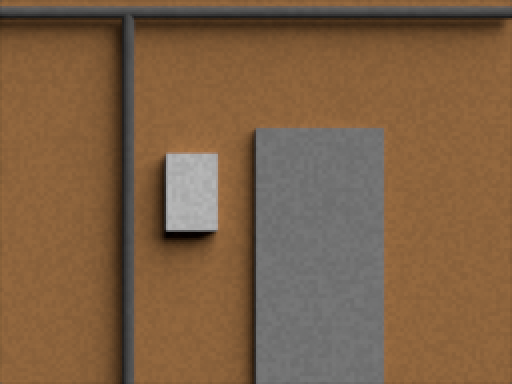
For Iridium Moons, I am planning to use this shader on character models and small prop objects that have relatively complex geometry as it is. However, for creating big wall texture trim sheets that will have small details painted on the texture rather than being part of the level geometry, it will be only a visual aid to help me see how the wall surface will look with pixelation while I am modeling it. The actual pixelation of the texture will then happen when the trim sheet gets exported at a low resolution.