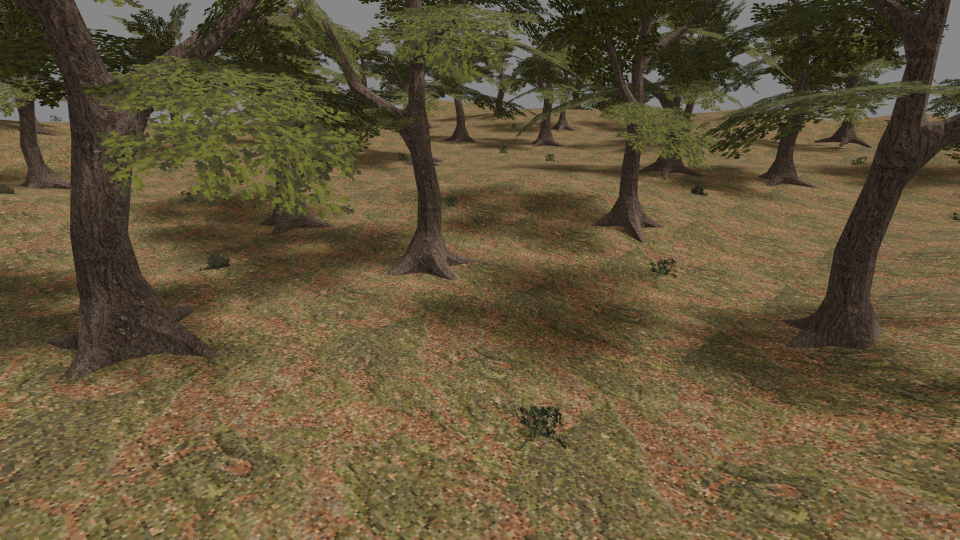
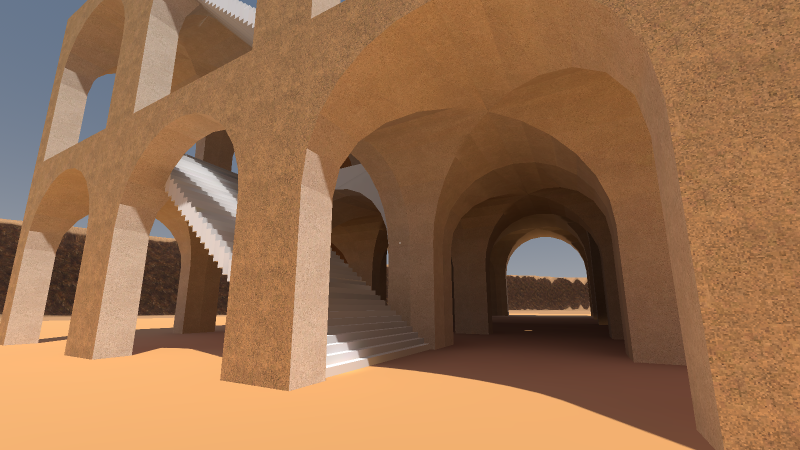
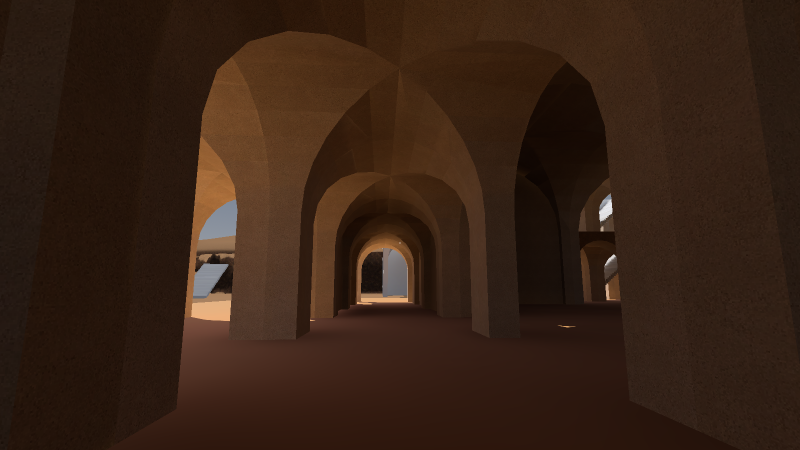
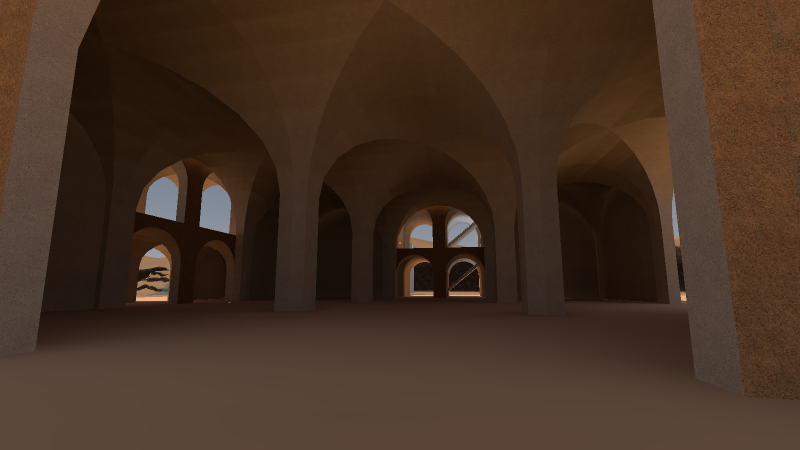
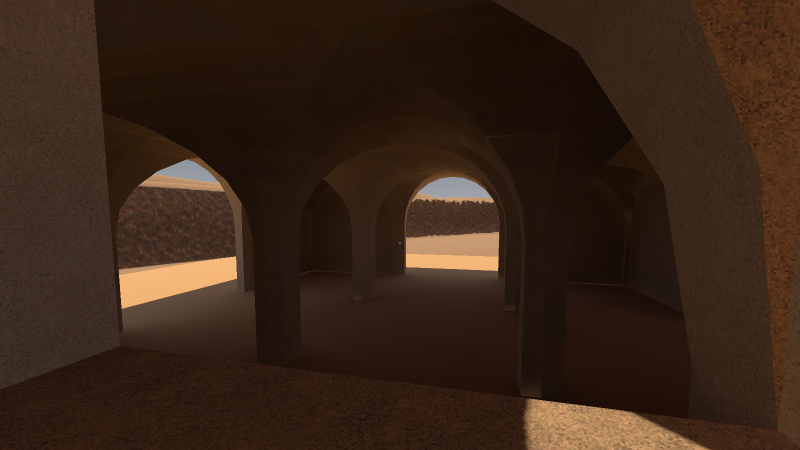
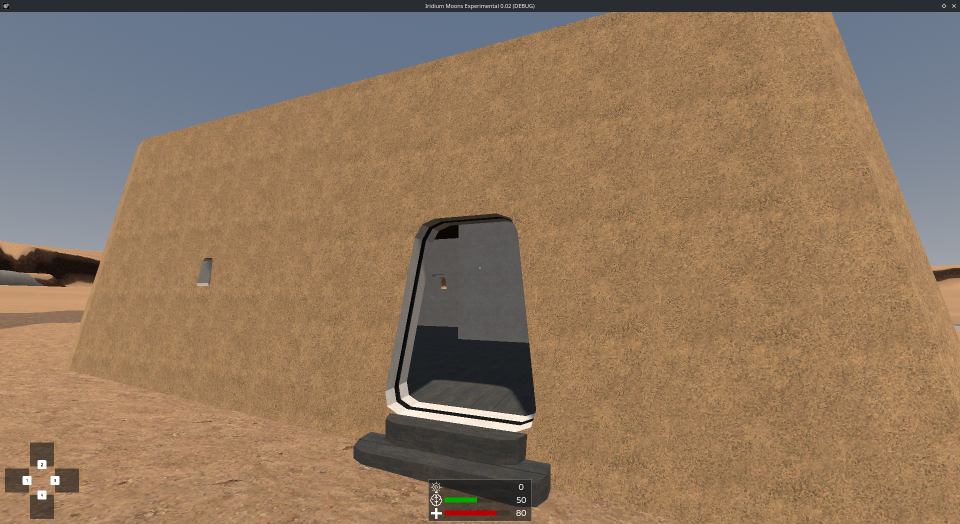
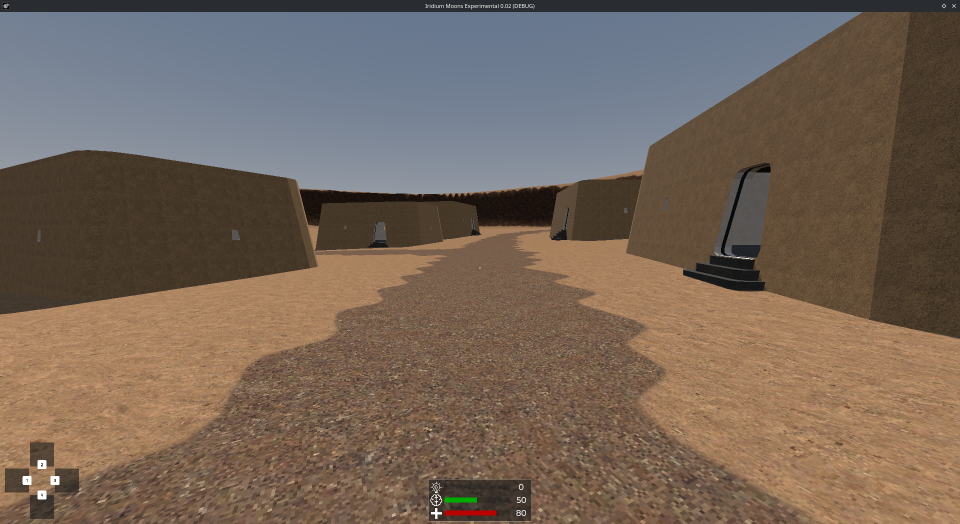
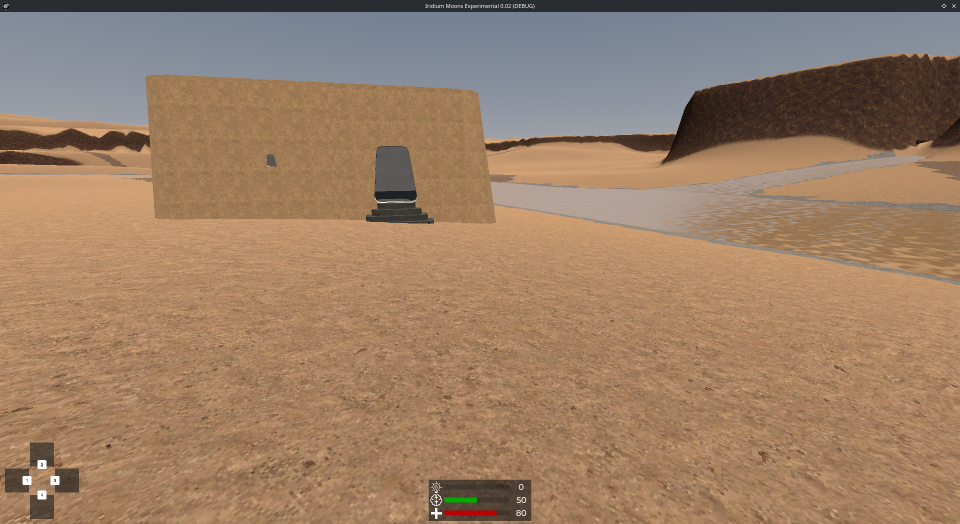
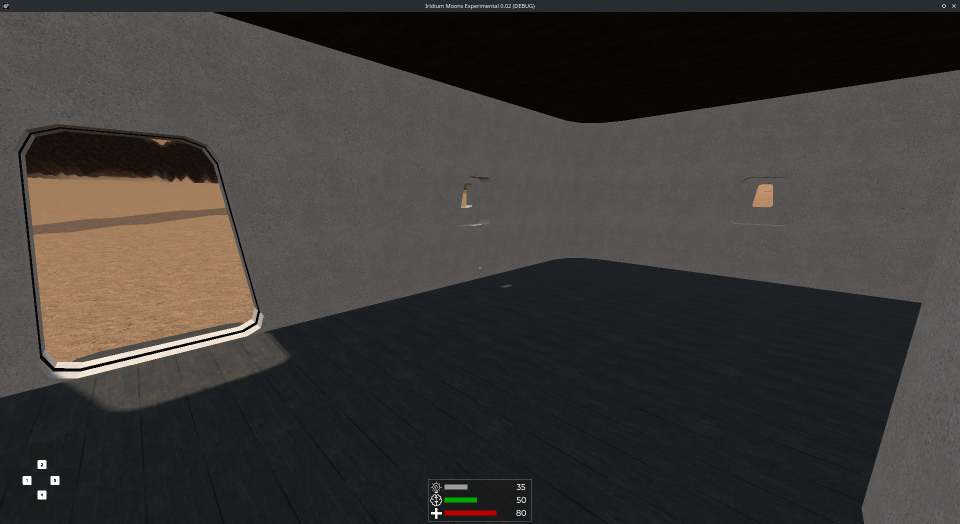
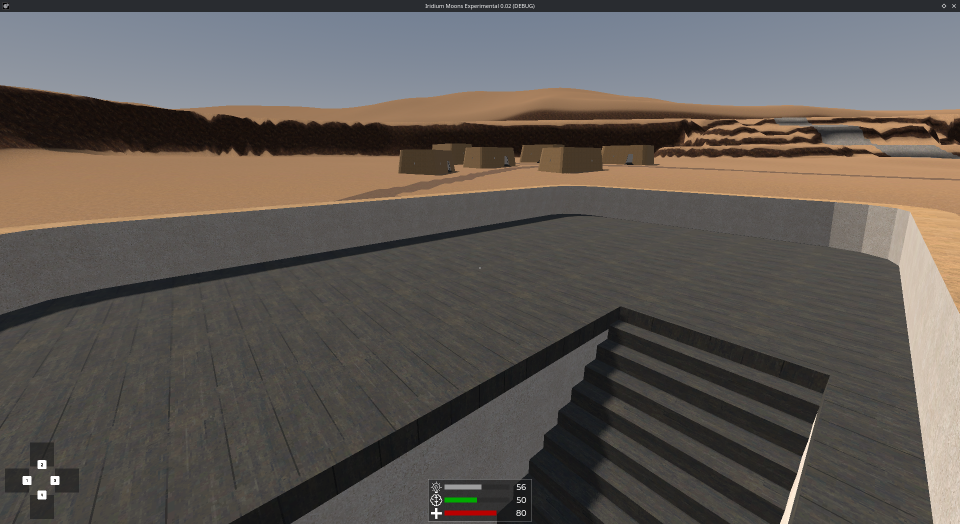
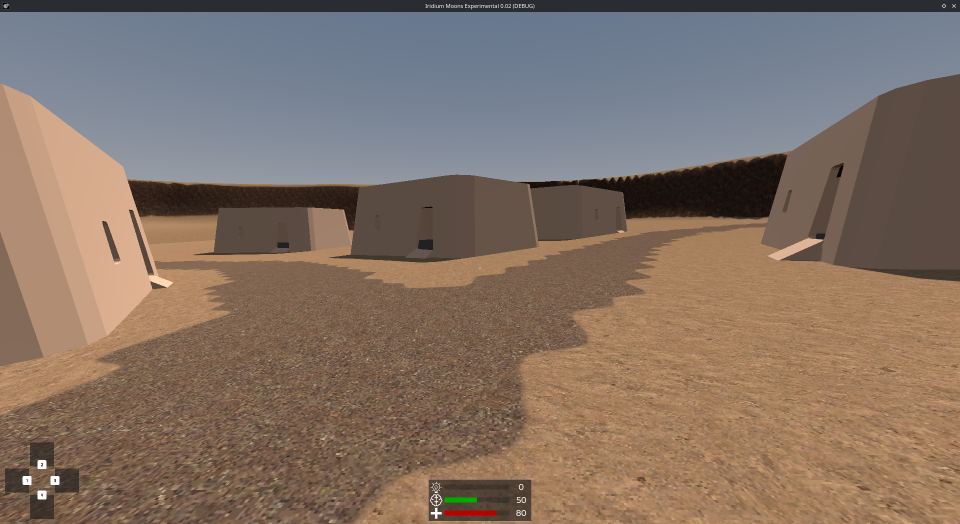
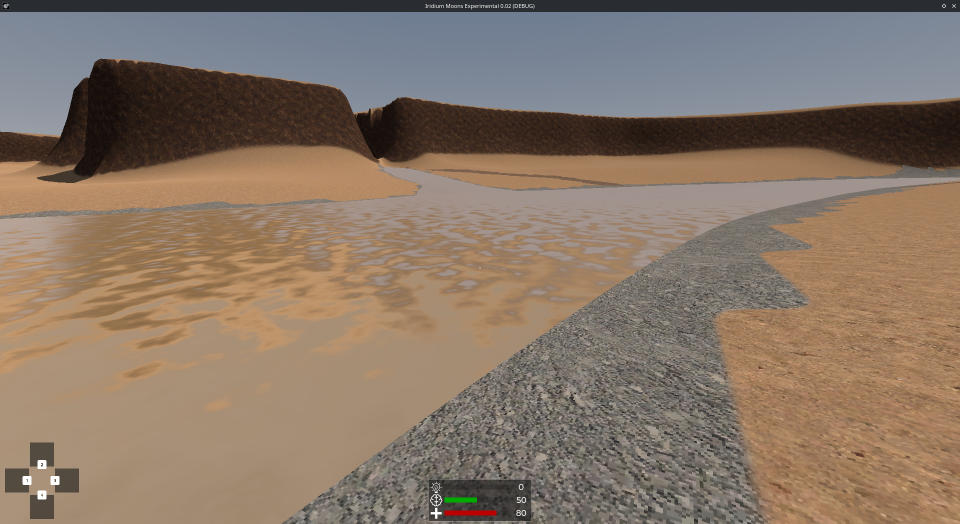
For the last week, I was very seriously considering the option to make Iridium Moons not as a 3D ImSim, but instead going for an ASCII or tile-based 2D Mystery Dungeon approach inspired by Dwarf Fortress and Caves of Qud. This would massively reduce the workload on creating assets, which in turn would make a huge open world at the scale of Morrowind and Kenshi that spans multiple planets and with very intricate resource management and survival mechanic a feasible option, given my resources and know-how. Which is a very tempting proposition. But at the end of the day my own imagination is just always very visual. And while I am struggling with keeping up the motivation to get the needed practice with Blender, the prospect of working with shapes, colors, and lighting to show fantastical places and environments to other people is just way too compelling for me to give up on. Even if this means the game as a whole has to be a lot smaller (because of the work needed to create the assets and build levels) and the mechanics a lot simpler (because they will need to work in real time and first person with a much more basic interface).
In the end, I think I will continue to pursue my original ideas for my game, as the concept still feels very strong to me, and should result in a kind of gameplay and sense of experiencing the game world that mirrors my favorite parts of my favorite games: A game with the general scale and open-world story progression of Fallout in first-person 3D graphics comparable to Morrowind, with the dungeon crawling gameplay of System Shock 2 and the approach to stealth of Thief. Last month I’ve been playing Dread Delusion, which took me 40 hours to complete, and I think a game with a similar scope and similar style of presentation should be quite realistically accomplishable for me. (Even though it was made by many more people with much more experience and skill. But I have all the time it will take, and no labor costs or office rent.)
The problems I want to avoid
One thing I always had a big hatred for in open-world RPGs is vendor trash. Low value items that you find in random chests, crates, trash cans, and corpses scattered through the game world whose only purpose is to be dumped at the next merchant you come across to get a pitiful amount of money for. This game mechanic is nothing but pure padding, busywork, and distraction. It’s the reason to get you to open hundreds of containers in the game world to create a little bit of excitement about the hope that there might actually be something good in it that you are going to use. And to make you run back and forth between the exploration sites and the next town to free your inventory space. It very quickly becomes a mindless chore that just wastes your time, and also really doesn’t make any sense for the character you are playing.
A closely related issue, that not all people have, but I know many others are quite bothered with as well, is that in many open-World RPGs there is often barely any reason to spend all the money that you made through the mindless busywork. Pretty much any weapon or piece of armor that you can buy in a store can also be found somewhere for free. And generally, the best items can only be found on enemies or in dungeons and not be bought at all. And players know what. So for a lot of players like me, buying better equipment in stores feels like a complete waste of money. There are a few games I’ve encountered in my life where starting equipment is really bad and finding the good equipment for free can take quite a long while. Stalker specifically comes to mind. Going from an MP5 to an AK-74 is a complete gamechanger, and when you see one in a store and have the money, it’s one of the best things you can do with your money in the early game. But as a first time player, you probably won’t know how much better this gun actually is until you get one. And so I image many first time players won’t spend their money on it and wait to take one from a dead NPC.
And of course the third element in this unholy trinity of items and inventory management is crafting. Metro Exodus is the only game with a crafting system I enjoy, because it only has two types of crafting components. Metal parts and chemicals. And you use them to craft basic consumables like ammunition, health packs, and gasmask filters or to repair worn out weapons. But more typically in open-world RPGs, you collect dozens of different types of flowers, berries, animal skins, teeth, antlers, metals, minerals, and whatever. And because there are so many types that are not interchangeable, and many of them can’t just be collected anywhere in 2 minutes when you realize you need them, you are compelled to always collect everything you see. It’s very much like vendor trash, but so much worse because you’ll be keeping all that crap throughout the entire game instead of regularly dumping it all out. And as mentioned with buying items from stores above, generally the items you can make are just worse than the unique items you can find on boss enemies or as quest rewards.
I really do love equipment and loadout customization a lot. But I loath vendor trash collecting, crafting component harvesting, and saving up millions of money that I have no good incentives to spend. All these things are just padding that makes the players do things the character they play would have no reason to do, and it makes you spend hours looking at inventory screens and trying to figure out which items have the best weight to sales price ratio to always carry the maximum amount of value while having your carrying capacity maxed out. Going through the logistics optimization minigame several times while inside a dungeon full of enemies because my inventory is full is one of the worst pacing killers.
Some ideas on loadouts
When it comes to collecting valuables, spending money, and managing your consumables, the most interesting game I’ve come across is Thief. Thief differs from the other games relevant to this topic here by being not only not an open-world game, but by being split into several non-continuous levels between which your inventory resets. At the end of each level, all your consumable items that you still had left are lost. At the start of the next level, you get a new basic set of consumables that the developers thought would be useful for the level ahead, and you have the option to buy some additional consumable items with the money you made from all the treasures you’ve stolen in the previous level. And after you made your selection and start the level, all the unspent money left over is reset as well. (Presumably all spent by the character in the indeterminate number of days that passes between each level.) This is of course a balancing mechanic, making it much more predictable for the level designers what items players will have at the start of each level. But it also gives players a good incentive to not hoard all the items they have and all the money they made because they “might need it later”. Because money not spend at the start of the level or items not used by the end of the level will be gone anyway. But you still want to go looking for all the loot, because just those two additional water arrows it might pay for might come really handy in the next level.
Now for my own game ideas, the ability to go explore different locations in any order and to come back later with different equipment like in a Metroidvania is a pretty high priority. And so the Thief approach of resetting the inventory between levels is not an option. But the idea of having the player select a limited loadout from a larger pool of optional equipment when leaving the home base to head out an explore a location is one that I find really interesting and compelling, and I think has some real potential for an open-world exploration game.
Instead of limiting how much stuff the players can bring when entering a ruin by a budget of money, the loadout when leaving the home base can be restricted by weight. And not just a maximum weight limit, but a gradual weight penalty. Players can bring as much or as little tools and supplies as they want, but the more stuff they bring, the more the weight will slow them down. This weight penalty can be applied to movement speed, jump distance, stealth, exhaustion, and combat. The more equipment you bring with you, the more tools are available to you to deal with the obstacles and threats you encounter. More powerful weapons and stronger armor can be huge gamechangers in combat, as is of course additional ammunition. But is it worth the decrease in mobility and stealth? And as a scavenger of old machine parts, you will also have considerable additional weight to deal with on your way back out. So what pieces of equipment will you definitely bring along, and which ones might you leave at home?
This is for every player to decide, and this is not a simple yes or know answer. This is something that is for the players to figure out and find what works best for their own play style. And being entirely equipment based, everything can be switched around and mixed up at any time. You don’t have to lock yourself into any specific play style by spending experience points to permanently improve specific character stats. And it will also likely lead to countless situations in which you curse yourself for not having brought that one piece of equipment that you thought you didn’t need, or seriously question why you brought all this stuff that’s completely useless.
Some ideas on money
Collecting valuables is fun. And when the game revolves around acquiring hard to find spare parts that are of great value to people trying to keep ancient machines running, and customizing your gear to your own preferences is important, simply not using any kind of money would feel out of place. There’s got to be money in the game, and meaningful ways to spend it instead of just watching a number on the interface go up and forgetting about it.
In many games, various consumable items exist in several different grades of quality. The higher qualities are more expensive but have a greater effect. And when the gameplay is significantly affected by carry weight, a high tier item that can provide the effect of several low tier items but still have the same weight has a meaningful increased value to players. Being equipped with higher tier consumables means that players can take more tools with them on an adventure and collect more salvage before they have to turn back to sell off their finds. In way too many games, players have to increase their characters’ stats to keep up with the higher stats on enemies in later areas of the game, with the gameplay staying basically the same. My idea is to instead allow players to go anywhere they want, and instead make character advancement about becoming more efficient and flexible at exploration. Movement becomes faster, the risk of engaging in firefights becomes lower, and having more tools at hand means more shortcuts can be used.
Taking inspiration from the default base loadout for every level in Thief, I like the idea that players have unlimited access to standard rations, standard medpacks, and lowest tier pistol ammunition at their home base. When players go completely broke, they can always return home and stock up on basic supplies to continue their search for more valuable salvage. But these free supplies are not very effective, so they probably will have to take a lot of them with them, which makes them slower and progress a bit more tedious. I think this could be a good incentive to go exploring beyond just the current main objective in a location, as a bigger haul means the next adventure will take less work. I also see the options that if players’ save up larger amounts of money, it can be used to upgrade the supply boxes in their home base. Instead of only having unlimited free Tier 1 medpacks, the upgrade now lets you stock up on as many Tier 2 medpacks as you like.
This would necessitate that stores don’t buy these consumables at all. But I actually quite like the thought that stores don’t buy regular loot at all. High value salvage parts sold to spare parts dealers could be the only source of income. Collecting all the weapons and armor of all dead NPCs and hauling them to a store, possibly over several trips, always feels to me like a more high value version of vendor trash. Characters in adventure movies or books never do that. And while it’s a common staple of D&D style fantasy world, Iridium Moons is my own original setting where I can simply establish that the general store in a peaceful farming village has no interest in purchasing 50 rifles and 20 suits of combat armor. Second hand arms traders probably do exist in the big hidden pirate ports, but in a game about scavenging old industrial machine parts these simply won’t be visited by the players.
But I think having mid-tier weapons or tools available for purchase in town wouldn’t hurt. They can be there for players who want to spend money on a better pistol, a rifle, or a nightvision scope now instead of waiting another 5 to 10 hours to find one that is free. Or you can keep playing more carefully for the time being and save the money for other things, if that’s more your play style. It’s up to the players to customize their equipment to their play style.
Recap
To sum up this long-winded rambling with my key notes for equipment and inventory mechanics in my game:
- Character progression and customization is entirely item based. Players don’t gain XP to permanently increase character stats.
- The primary equipment limitation is weight. Additional weight reduces movement speed, jump distance, stealth, and endurance, decreasing the pace of making progress.
- Higher quality items generally have the same performance as standard items, but at a lower equipment weight.
- Standard consumables can be restocked at the home base for free, higher quality lightweight items have to be purchased in town or scavenged on adventures.
- Rare high value spare parts taken from old machines are the only form of treasure that can be sold for money.
- Some mid-tier tools and weapons can be purchased, but also found as pickups. High-tier equipment can only be found as pickups.